
March 25, 2026
Custom Business Software: Use Cases and Cost
Learn custom business software development in 2026: practical use cases, cost drivers, delivery process, and when custom software is worth the investment.
Read articlePublished Updated
Learn when to connect Google Sheets to a web app, with Indian SMB use cases, data rules, sync patterns, security, migration steps, costs, and practical FAQs.
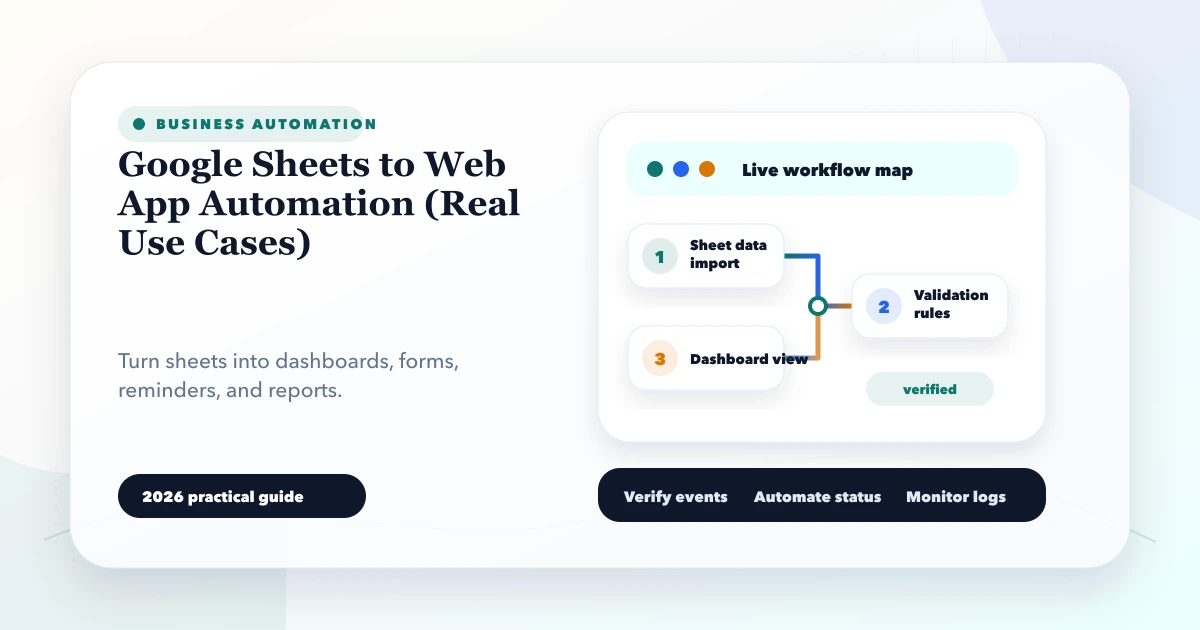
Google Sheets often becomes the first operating system of a small business. Leads, orders, stock, attendance, collections, quotations, and daily reports may all begin in separate tabs. The sheet works because everyone understands it, but growth exposes its limits: accidental edits, duplicate rows, unclear ownership, broken formulas, slow reporting, and no reliable permission boundary.
Google Sheets to web app automation does not always mean replacing the spreadsheet immediately. A safer approach is to identify which parts should remain flexible in Sheets and which business actions need controlled forms, validation, roles, dashboards, logs, or a proper database.
This guide explains real Indian SMB scenarios, sync patterns, costs, migration triggers, and the questions to settle before development.
By Tushar C. (Founder, VASUYASHII). Reviewed for workflow clarity, data ownership, implementation risk, security, and practical business use.
Use a web app with Google Sheets when staff need a simpler interface but the business still depends on an existing spreadsheet for review, import, or reporting. Use a proper application database when the workflow includes transactions, many simultaneous users, strict permissions, audit history, or connected records such as customers, products, orders, invoices, and payments.
Three common approaches are:
Avoid uncontrolled two-way editing. If both the sheet and app can change the same field without a conflict rule, the team will eventually lose trust in the data.
A service company may collect enquiries from forms, WhatsApp, calls, and referrals in one sheet. As volume grows, rows are copied, owners are unclear, and follow-up dates are missed.
A focused web app can provide:
The app should store the operational record. Sheets can remain a reporting or bulk-review tool. This avoids two staff members editing the same lead status in different places. For a broader workflow, compare the CRM and ERP planning hub and integration services.
A wholesaler may receive orders on WhatsApp and enter product, quantity, dealer, rate, and delivery notes into a spreadsheet. Problems appear when product names vary, stock is not checked, and the same order is entered twice.
The web-app version can use product and dealer masters, dropdowns, quantity validation, unique order numbers, role-based approval, and a printable order summary. A scheduled Sheet export can support management review without allowing the report to become the order database.
This is where a spreadsheet interface stops being enough. Orders connect to products, customers, stock, payments, and delivery status. Those relationships need stable identifiers and validation. The Business Suite product shows the kind of controlled product, stock, invoice, and company-scoped workflow that a mature operational app requires. It is product context, not a claim that every Sheet automation needs a full ERP.
A field-service team may submit attendance, visit notes, or task completion through a shared Sheet. A mobile-friendly form can reduce accidental column edits and capture only approved fields.
A practical flow is:
Do not collect location, photos, or personal data merely because the tool supports it. Define a legitimate business need, access policy, retention period, and employee communication before adding sensitive fields.
Many businesses track purchase requests and expenses in Sheets because the format is familiar. The risky part is not data entry; it is approval and accountability.
A small approval app can add requester identity, category, amount, attachment, approver, comments, timestamps, and immutable status history. The reporting sheet then receives approved records only. Staff should not be able to overwrite the approver or convert a rejected request into an approved one by editing a cell.
For higher-value purchases, define maker-checker rules: the creator cannot approve their own request, and a second approval is required above a threshold. The permission matrix guide explains how to document view, create, edit, approve, export, and administrative actions.
For every field, decide which system owns the authoritative value.
| Data | Recommended owner | Why |
|---|---|---|
| Customer or product master | App/database | Needs stable IDs, validation, and relationships |
| Temporary planning notes | Google Sheets | Flexible collaboration is useful |
| Order, invoice, payment, or approval status | App/database | Requires history, permissions, and consistency |
| Management analysis | Sheet or BI export | Users may need formulas and ad hoc review |
| Configuration used by automation | App admin or protected sheet | Changes need ownership and validation |
If the Sheet remains the source, protect columns, use stable row IDs, and document who can change schemas. If the app becomes the source, make exports read-only and label their generated time so managers do not mistake an old file for live data.
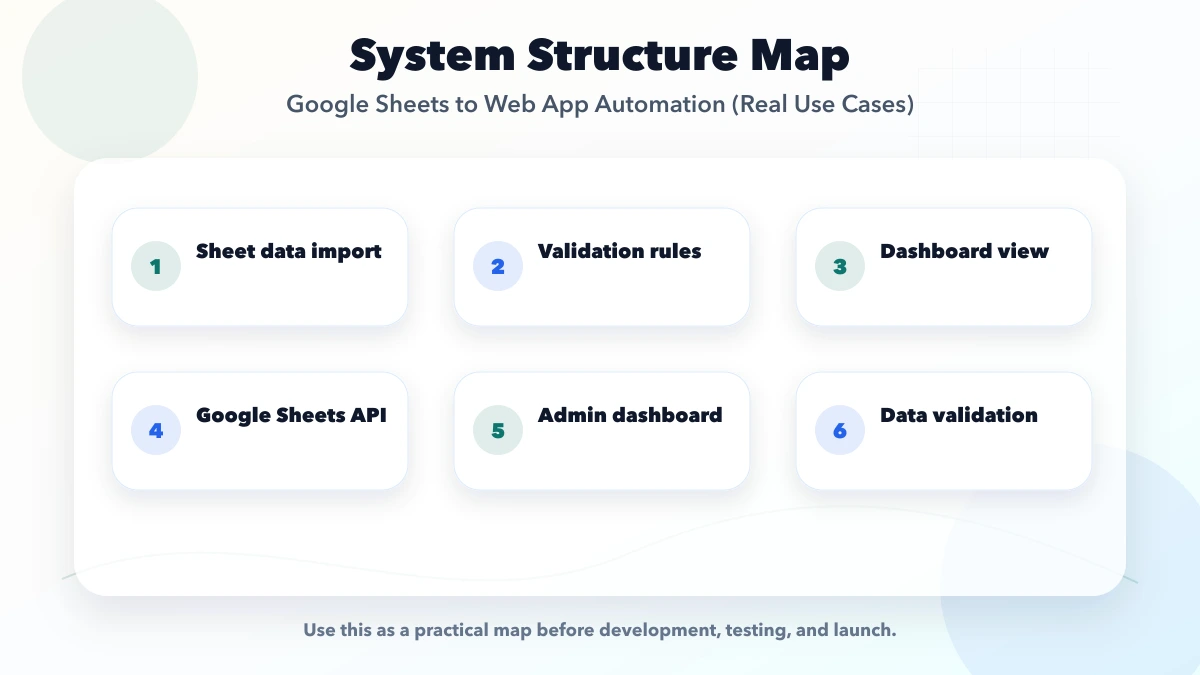
The app reads new or changed rows every few minutes or hours. This is easier to operate but not suitable when users expect instant status.
A controlled script or API call sends a row change to the app. It is faster, but retries, authentication, duplicate handling, and script ownership must be planned.
The team freezes the sheet, cleans records, imports them into the application, verifies totals, and switches daily work to the app. This is often safest for billing, stock, and approval workflows.
Every sync needs an external ID, last-updated time, validation result, and error status. Failed rows should appear in an exception queue with a reason such as missing phone, unknown product, invalid date, duplicate order number, or permission failure. Never silently skip bad records.
Automation magnifies existing spreadsheet mistakes. Before development:
Test the cleanup on a copy. Reconcile row counts and important totals before and after import. A successful API call does not prove that the migrated business data is correct.
Google account access and web-app access are separate boundaries. Review both.
For business-critical workflows, add a manual fallback. Staff should know how to record a request during an outage and how that temporary record will be reconciled later.
| Scope | Practical range | Typical timeline |
|---|---|---|
| Sheet audit, cleanup rules, and simple automation | Rs. 25,000 to Rs. 75,000 | 1 to 3 weeks |
| Web form, dashboard, roles, and one-way Sheet sync | Rs. 75,000 to Rs. 2.5 lakh | 3 to 7 weeks |
| Multi-module app with migration and integrations | Rs. 2.5 lakh to Rs. 8 lakh+ | 2 to 5 months |
These are planning ranges, not fixed quotes. Cost changes with sheet quality, number of workflows, simultaneous users, role depth, sync frequency, attachments, reports, historical migration, external APIs, and support requirements.
A cheap connector may be enough for a low-risk mailing list. It is not enough for stock, payment, payroll, or approval data unless validation, ownership, recovery, and audit requirements are addressed.
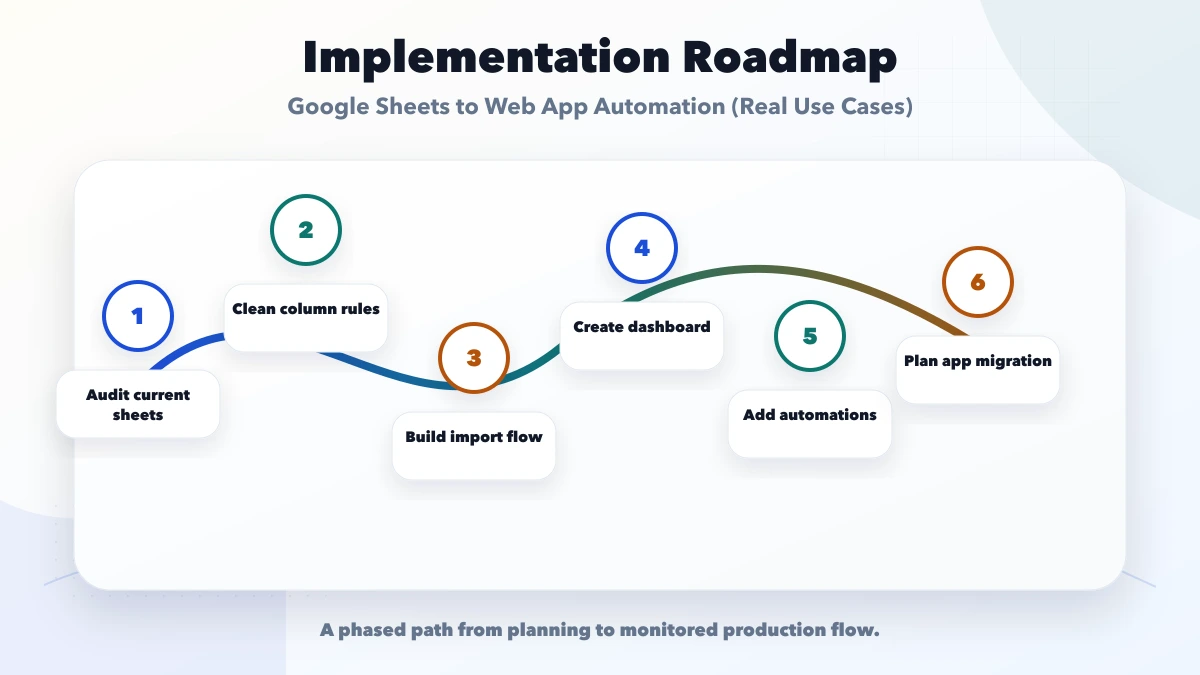
Keep Sheets when the workflow is low risk, has few editors, needs flexible analysis, and does not contain complex relationships.
Connect Sheets to an app when users need controlled forms or dashboards but managers still require spreadsheet review.
Migrate to a database-backed app when records drive money, stock, approvals, permissions, customer access, audit history, or multiple connected modules.
The decision should be made per workflow, not for the whole company in one step. A business can keep marketing planning in Sheets while moving orders and payments into a controlled application.
It can support a low-risk prototype or reporting workflow, but it is usually a weak long-term source for transactional, permission-heavy, or highly relational business data.
Prefer one authoritative direction. Two-way sync is justified only when conflict, retry, deletion, and ownership rules are explicit and testable.
Yes during a controlled pilot, but define which fields remain editable. After migration, keep the old file read-only or clearly archived to prevent split records.
Use stable external IDs, backend uniqueness rules, and idempotent imports. Do not rely only on names, phone numbers, or row positions.
Apps Script can be useful for focused automation. A larger workflow may still need a backend, database, role controls, monitoring, and an exception dashboard.
Include account ownership, spreadsheet IDs, scopes, field mapping, triggers, credentials location, retry rules, rejected-row handling, deployment notes, and support ownership.
Yes. VASUYASHII can map the current sheets, identify the first workflow, design the data model and roles, and scope a phased web application or integration.
Choose one sheet that affects daily operations and document its owner, users, columns, formulas, decisions, errors, and reports. That creates a useful discovery brief without committing to a large migration.
Related Articles
March 25, 2026
Learn custom business software development in 2026: practical use cases, cost drivers, delivery process, and when custom software is worth the investment.
Read article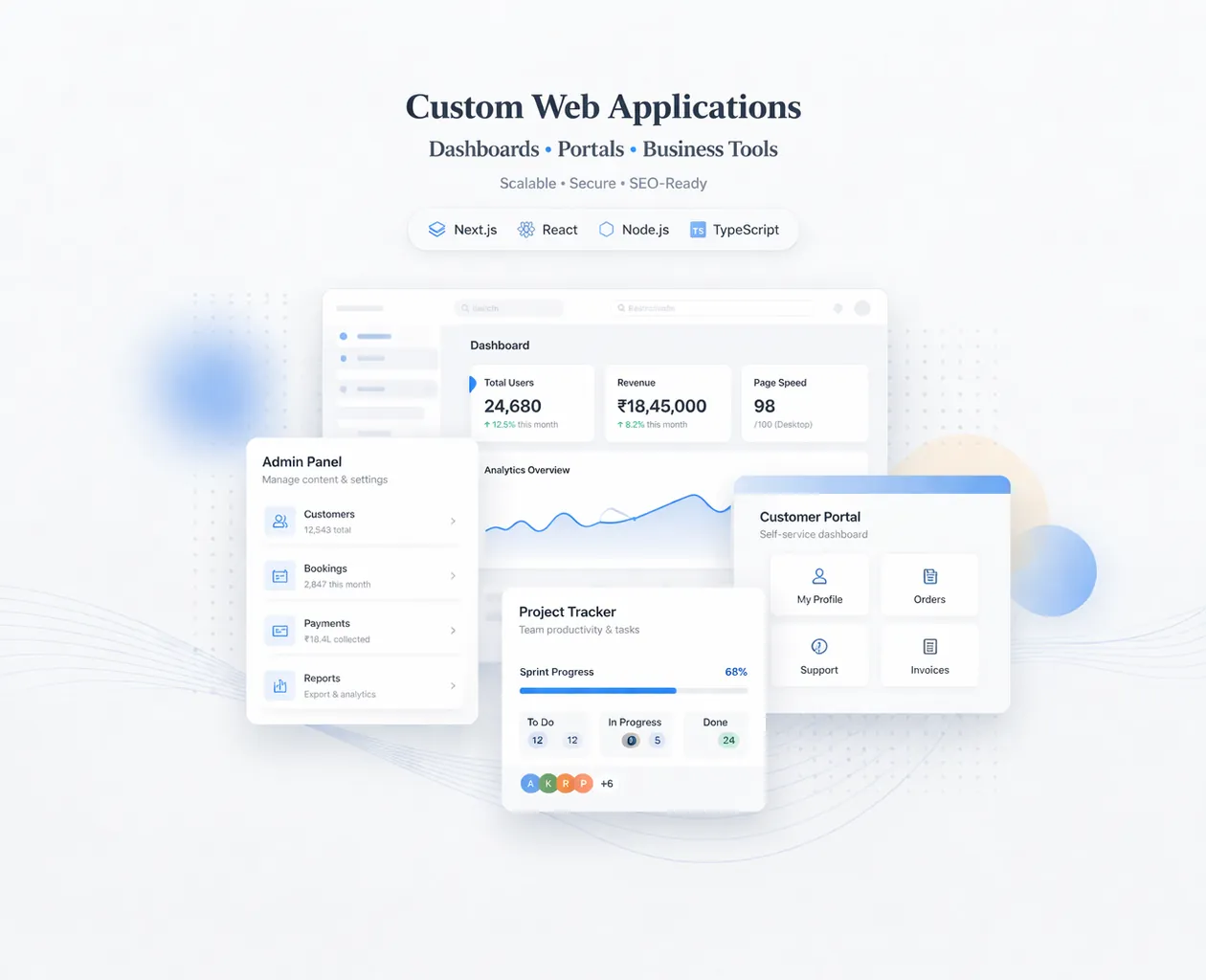
March 25, 2026
Explore web application development services in 2026: modules, workflows, real examples, process, timelines, integrations, and the main business cost drivers.
Read article
March 19, 2026
Plan a business web app with roles, modules, data models, security, testing, deployment, Indian costs, implementation guidance, and a practical checklist.
Read article
May 17, 2026
Use this web app performance checklist for Core Web Vitals, APIs, databases, JavaScript, tables, background jobs, monitoring, budgets, and regression tests.
Read article