
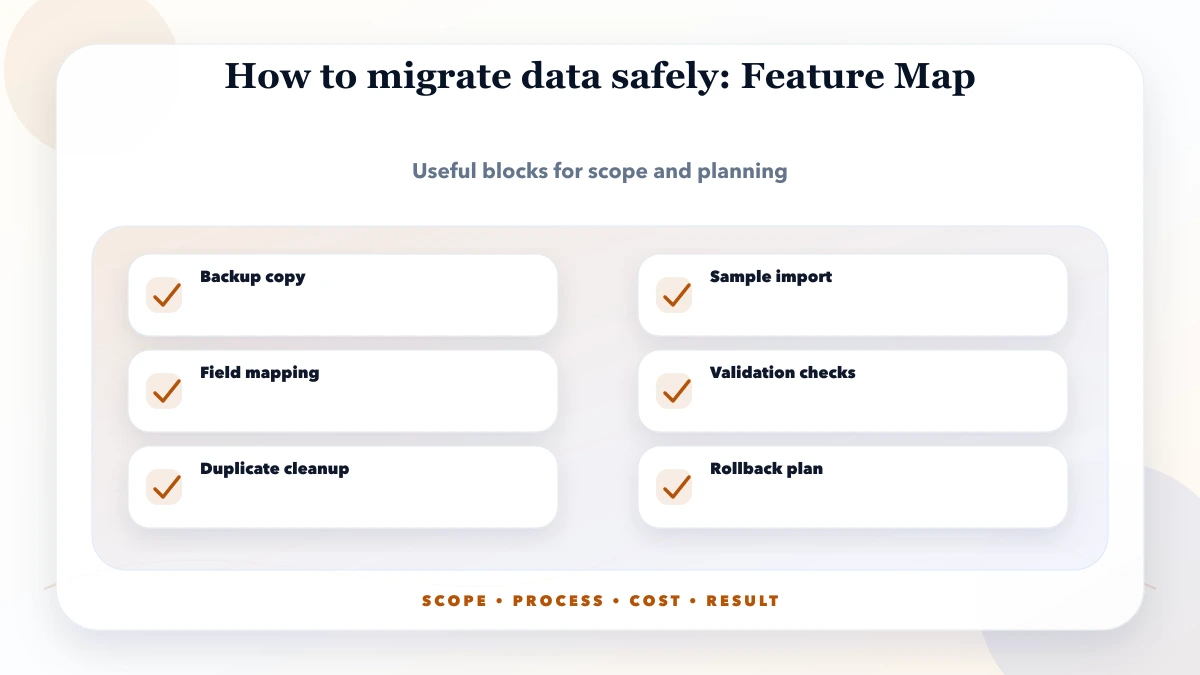
May 19, 2026
How to Migrate Business Data Safely: Checks Before Go-Live
Plan a business data migration with source mapping, trial imports, record reconciliation, cutover checks, tested recovery and clear sign-off ownership.
Read articlePublished Updated
Migrate Excel data to business software with a controlled plan for cleanup, field mapping, pilot imports, reconciliation, cutover, and rollback.
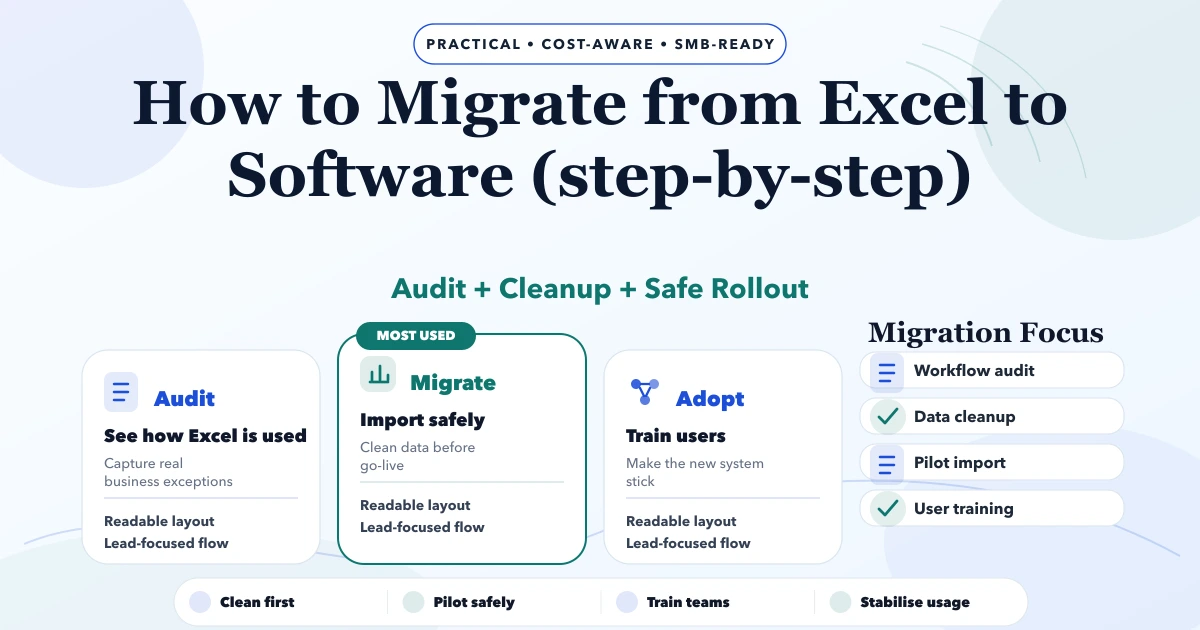
Moving from Excel to business software is not a file-upload task. It is a controlled change to records, workflows, permissions and daily responsibility. A successful migration decides which data is trusted, maps it to the new model, tests it with real users, reconciles totals and gives the team a safe cutover and rollback plan.
This guide is for Indian SMEs replacing spreadsheets used for customers, products, stock, purchases, payments, expenses, leads or operational reporting. It does not assume that every historical row should move or that custom software is always the right destination.
Editorial review: Reviewed on 3 August 2026 against VASUYASHII's current company-scoped business-software and import-planning workflow. Pricing examples are indicative and require the actual files, row counts, rules and target system.
Create a register before opening a migration ticket.
| File or sheet | Business owner | Purpose | Update frequency | Source of truth? |
|---|---|---|---|---|
| Product master | Store manager | SKU, GST and price | Weekly | Yes |
| Stock register | Warehouse lead | Opening and movement | Daily | Partly |
| Customer list | Sales lead | Contact and GST details | Daily | No, duplicates exist |
| Payment tracker | Accounts | Collection follow-up | Daily | Yes after reconciliation |
| Monthly report | Owner | Summary only | Monthly | Derived |
Do not migrate derived reports as transaction data when they can be rebuilt from trusted records. Identify hidden sheets, macros, formulas, external links and password-protected workbooks. Record who can explain each rule.
Observe how the team uses the files. The written process may say “update stock after sale,” while staff may update a summary at the end of the day, keep returns in a separate workbook and resolve negative stock through manual corrections.
For each workflow, capture:
Software should replace a defined workflow. Importing columns without understanding these steps can preserve the same confusion inside a more expensive interface.
Classify source data:
Move only what has a business or legal purpose. Some teams import active masters and opening balances, then keep old workbooks in a controlled read-only archive. Confirm retention and statutory needs with qualified accounting or legal advisers.
The new system needs stable entities and identifiers. For a billing and inventory workflow, these may include company, customer, vendor, product, invoice, invoice item, purchase, payment, expense and stock movement.
This current VASUYASHII Business Suite product screen illustrates a structured product master with fields for SKU or barcode, HSN/SAC, unit, GST, prices and stock.
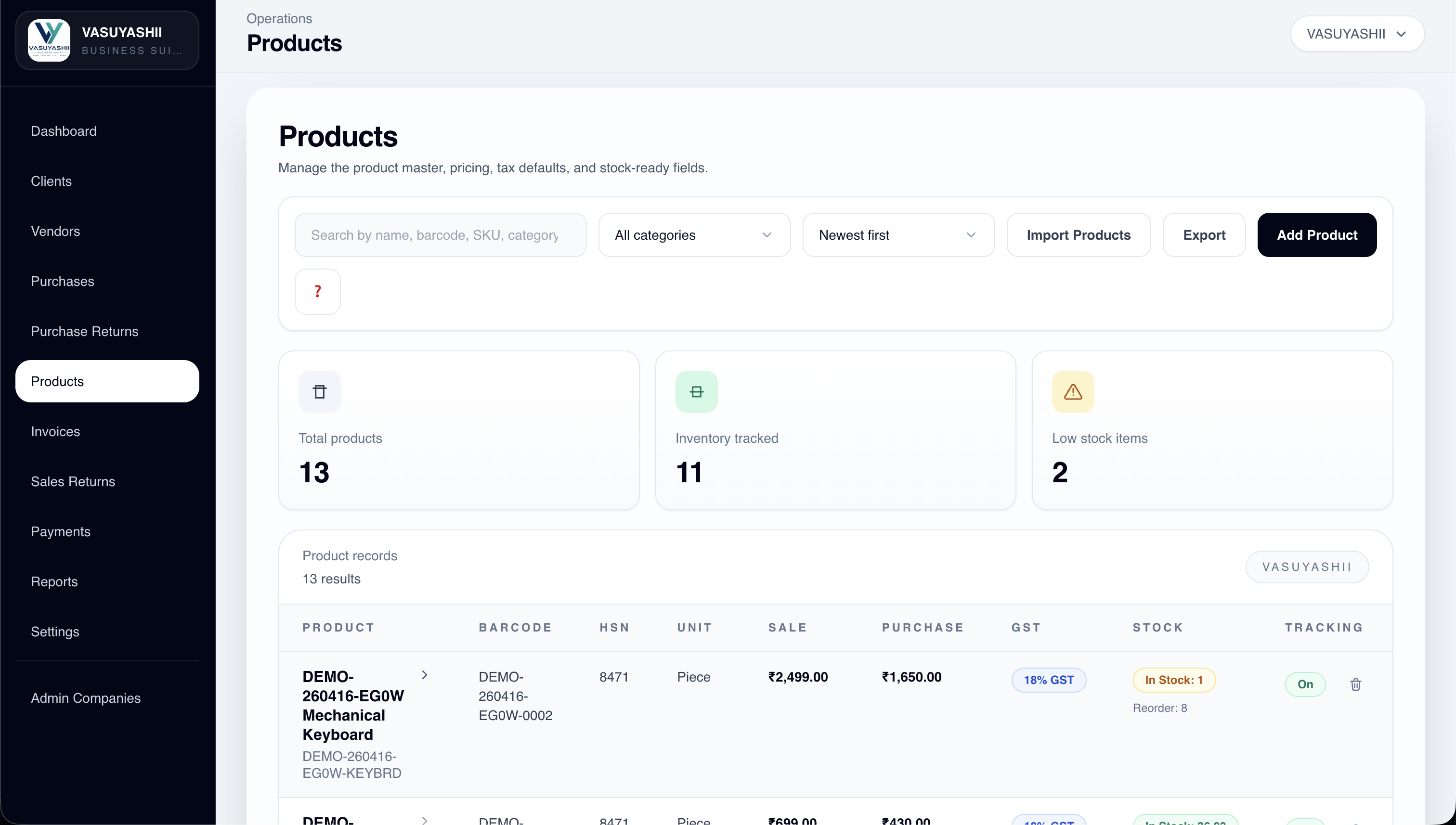
The screenshot demonstrates current product structure, not a completed customer migration. Actual fields and rules must match the target business.
Define:
Do cleaning in a copy, never in the only original file. Record transformations so they can be repeated for the final cutover.
Common tasks include:
Do not automatically merge two customers because the names look similar. Create matching rules and a human review queue for uncertain cases.
| Source column | Target field | Transformation | Validation | Default |
|---|---|---|---|---|
Customer Name | customer.name | Trim spaces | Required | None |
GST No | customer.gstin | Uppercase | Format if present | Blank |
Item Code | product.sku | Trim and uppercase | Unique per company | None |
Qty | opening.quantity | Parse decimal | Non-negative | 0 |
Sale Rate | product.sale_price | Parse currency | Non-negative | None |
Active? | product.is_active | Map Yes/No | Approved values | true |
Include lookup rules for categories, states, units and related records. State how invalid rows are returned and how transformation errors are logged. Version this mapping with the project requirements.
The import process should define:
A dry run should not change production data. It should show accepted rows, rejected rows, warnings, mappings and expected changes.
Select a representative sample, not only clean rows. Include duplicates, missing fields, unusual units, old dates, inactive records and edge cases.
Test with the actual roles that will use the system. The owner may care about totals, while warehouse staff care about search, units and stock movement. Record every manual correction required after import; repeated corrections should become a mapping or validation rule.
Reconciliation is the acceptance step, not an optional report.
| Check | Source evidence | Target evidence | Pass condition |
|---|---|---|---|
| Customer count | Accepted unique rows | Active customer count | Exact approved match |
| Product count | Accepted SKU list | Product export | Same identifiers |
| Opening stock | Approved quantity total | Opening movement report | Match by SKU/location |
| Outstanding due | Signed balance file | Customer due report | Match by customer and total |
| Rejected rows | Error file | Import log | Every rejection has reason |
| Sample records | Owner-selected sample | UI/API record | Fields and relationships correct |
Counts alone are insufficient. Ten incorrect records can still produce the same total. Reconcile totals, grouped totals and sample details.
Train by role and workflow. Sales users do not need an administrator lecture; they need to create, find, correct and follow up on their own records. Use realistic sample data and a short operating guide.
A parallel run can be useful for one controlled cycle, but do not allow indefinite dual entry. Define which system is authoritative during the pilot and the exact date after which new transactions belong only in the software.
Track questions, overrides, rejected transactions and reasons users return to Excel. These are adoption signals and may reveal missing scope or training.
Create a runbook with times and owners:
Avoid Friday-night cutovers when the right business reviewers will not be available.
Include backup and restore responsibility in the rollout plan, and test recovery using sample records before relying on it.
Do not assume an external spreadsheet can be restored automatically. Define what the backup contains, where it is stored, who can restore it and how restoration is tested.
Keep original files and final transformed files read-only for the agreed retention period. Document the software version, import version, row counts, approvals and known exceptions.
Cost depends on source-file count, row volume, data quality, relationships, historical depth, transformation rules, opening balances, integrations, dry runs, training and cutover support. A clean customer list is different from years of stock and financial history across inconsistent workbooks.
Indicative planning can range from a focused import/configuration phase to a larger custom-system rollout. Do not accept a fixed migration price before sample files and mapping rules are reviewed.
Use the data import checklist, staff onboarding guide, and software requirement template to prepare comparable scope.
Not automatically. Import active and required historical data after business, legal and reporting needs are defined. Archive the remainder safely when appropriate.
At least one representative staging run is advisable. Complex or poor-quality data may need several iterations until mappings and reconciliation pass.
Define matching rules and send uncertain pairs for human review. Do not merge solely on a similar name.
Excel can remain an export or analysis tool, but one system must own new operational transactions. Indefinite dual entry creates reconciliation problems.
Use signed source totals, grouped reconciliation, identifier-level samples and owner approval. The same date and scope must be used on both sides.
VASUYASHII can review sample files, define mappings, prepare import validation and scope a phased software rollout. Feasibility and price depend on the actual data and target workflow.
Create the workbook inventory, remove confidential rows not needed for estimation, and share representative samples with the expected target modules. Contact VASUYASHII for a scoped migration review.
Related Articles
May 19, 2026
Plan a business data migration with source mapping, trial imports, record reconciliation, cutover checks, tested recovery and clear sign-off ownership.
Read article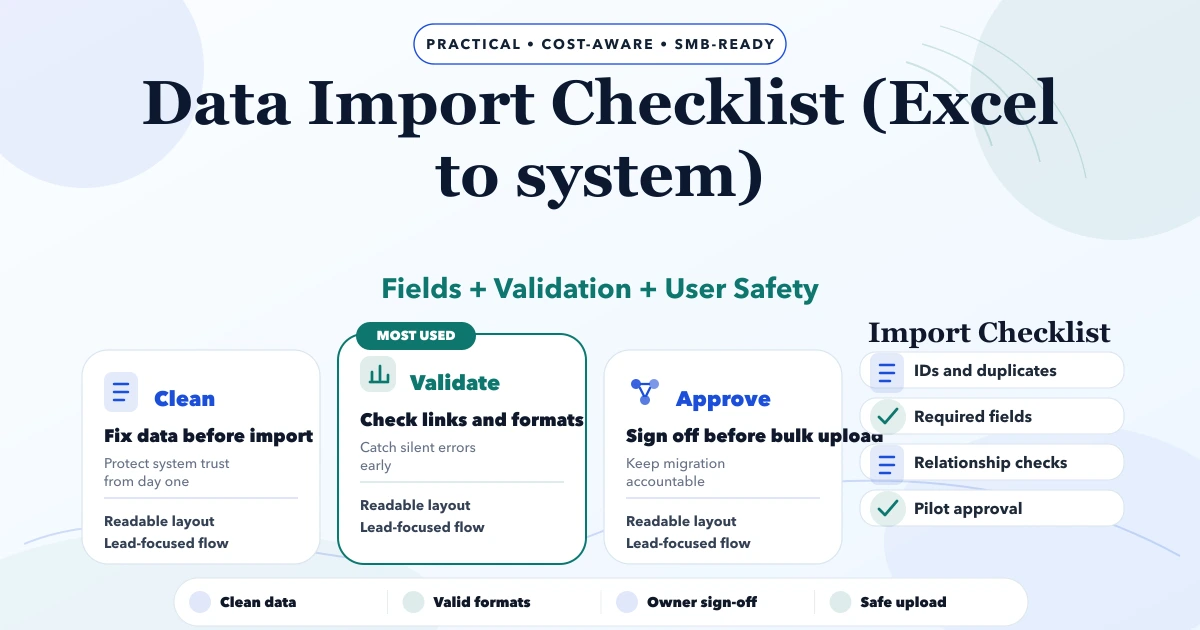
May 8, 2026
Use this Excel-to-software import checklist to map fields, clean duplicates, validate rows, run a dry import, reconcile totals, and plan rollback.
Read article
May 8, 2026
Create role-based staff training for new business software with practice scenarios, cutover support, adoption metrics, access safety, and clear ownership.
Read article
March 26, 2026
Warehouse management system guide for small businesses with WMS features, pricing in India, tech stack, timeline, and cost drivers for lean operations.
Read article